


This article will help you setup your email address on your iPhone
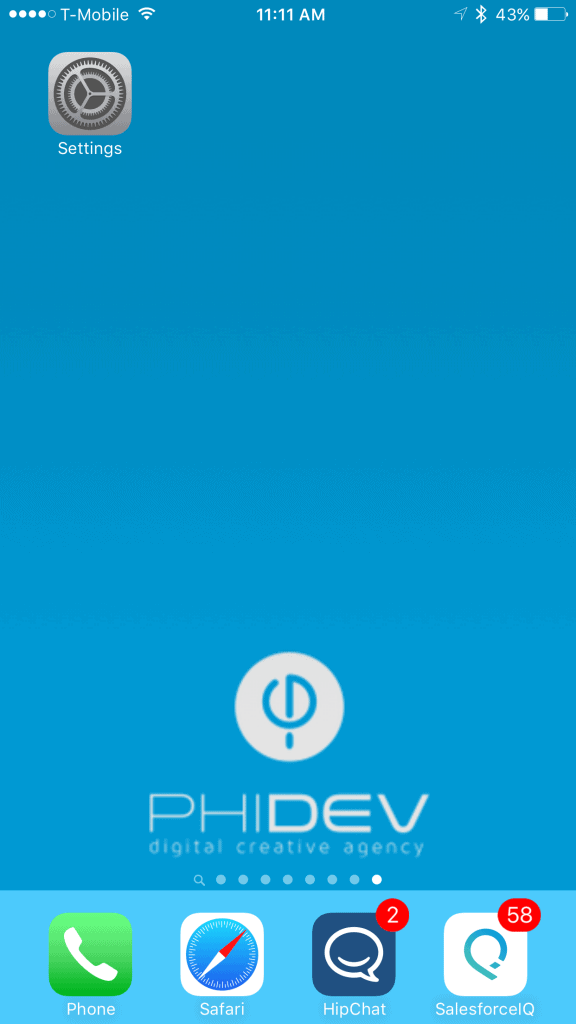
- Find and click Settings on your iDevice.
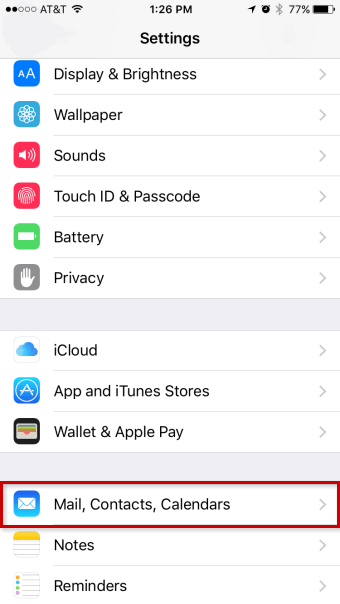
- Move down the page until you find Mail, Contacts, Calendars.
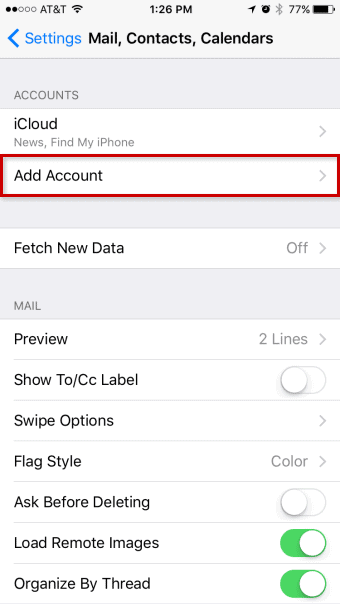
- Tap in Add Account
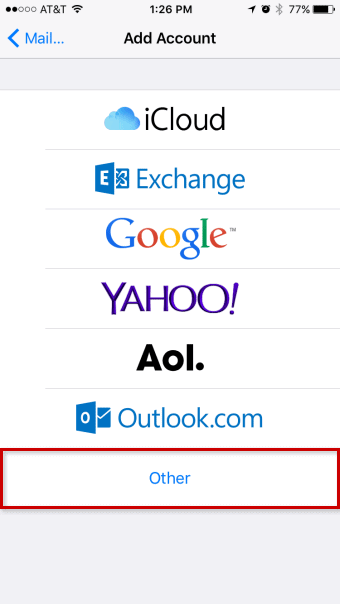
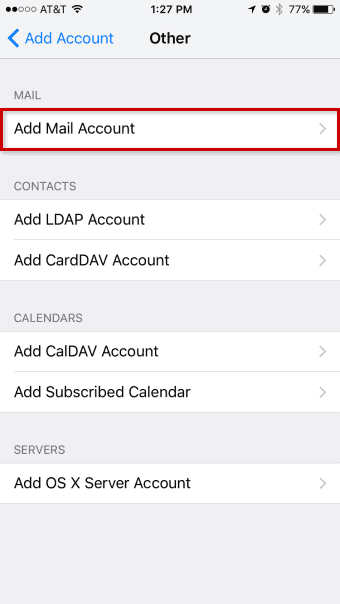
- Scroll down and select Other
- Now go into Add Mail Account
- Enter the name you wish to display to others when sending mail, this is the name people will see in the “From” field. Enter your full e-mail address, and the password for the e-mail account. The description will mirror the e-mail address by default, although you may change it to whatever you like.
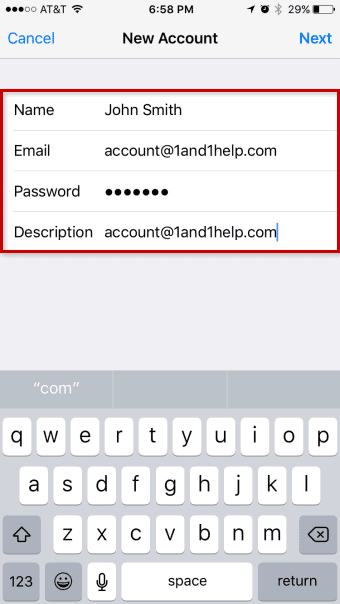
- Tap the Next button on the top right corner
- Ensure that IMAP is selected at the top and that the name, address and description have been carried over.
Scroll down and enter imap.ionos.com in the Host Name field and your full E-mail Address in the User Name field under the Incoming Mail Server section. - Enter smtp.ionos.com in the Host Name field and your full E-mail address in the User Name field under the Outgoing Mail Server section. Enter the Password for the E-mail account.
- Tap the Next button on the top right corner
- Click Save to complete the setup of your Phidev email account on your iPhone.